If you’ve just finished reading Part 1 of this series, you now know what Kafka is, how it works, and you’ve even built a small producer and consumer in Node.js. Great progress.
But here’s where most developers hit a wall.
They look at Kafka and think – “Wait, this stores data. My database also stores data. So… which one do I actually use? Can Kafka replace my database? Do I even need both?”
I had the exact same confusion. And honestly, it’s one of the most common questions developers ask when they first encounter Kafka. So in this blog, we’re going to settle it once and for all – with real comparisons, practical code, and examples that actually make sense.
Let’s clear the confusion.
First – They Are Not the Same Thing (Apache Kafka vs Databases)
Before we compare anything, let’s get this out of the way clearly:
Kafka is not a database. A database is not Kafka. They solve completely different problems.
Think of it this way.
A database is like a filing cabinet. You put documents in, you take them out, you update them, you delete them. The cabinet stores whatever the current state of things is. If you want to know a user’s email address right now – you open the cabinet and look it up.
Kafka is more like a conveyor belt in a factory. Things move across it in real time. Different stations (services) pick up what they need as it passes by. The conveyor belt doesn’t store the final product – it moves it from one place to another, and different workers react to what they see.
One is about storing state. The other is about moving events.
The Core Difference – In One Table
Table (Comparison Feature): Database Vs Apache Kafka
| Feature | Database (SQL / NoSQL) | Apache Kafka |
|---|---|---|
| Main Purpose | Store and query data permanently | Stream and transport events in real time |
| Data Model | Tables, Documents, Key-Value pairs | Append-only event log |
| CRUD Support | Full – Create, Read, Update, Delete | Only Append (no true update or delete) |
| Querying | SQL queries, filters, joins | No querying – only consuming |
| Data Lifetime | Forever, until you delete it | Temporary – based on retention policy |
| Best For | User profiles, orders, products | Notifications, real-time sync, event triggers |
| Speed | Fast reads and writes | Extremely high throughput |
| Indexes | Yes – fast lookups | No indexes |
| Examples | MySQL, PostgreSQL, MongoDB | Apache Kafka, RabbitMQ |
The Biggest Mistake Developers Make
A lot of developers – especially when they first discover Kafka – start thinking:
“Should I replace my database with Kafka?”
The answer is almost always no.
Kafka and databases are not competitors. They are teammates. In production systems, companies use both together. Here is a simple example of how they work side by side:
User places an order on your website
↓
Save the order in PostgreSQL (permanent storage)
↓
Send an event to Kafka topic "orders"
↓
Multiple services react to that event:
→ Email Service sends a confirmation email
→ Inventory Service reduces stock in MongoDB
→ Analytics Service updates a real-time dashboard
The database handles what the current state is. Kafka handles what just happened and who needs to know about it.
That is the relationship. Simple, clean, and powerful.
Can We Do CRUD in Kafka?
This is where it gets interesting.
In a traditional database, CRUD stands for Create, Read, Update, Delete. We do these operations every day – inserting a user, fetching their profile, updating their email, deleting their account.
Kafka Topic "users"
─────────────────────────────────────────
Offset 0 → { id: "1", name: "Ali", action: "created" }
Offset 1 → { id: "2", name: "Sara", action: "created" }
Offset 2 → { id: "3", name: "Ahmed", action: "created" }
Offset 3 → { id: "4", name: "Rames Kumawat", action: "created" }
Offset 4 → { id: "5", name: "Ravi", action: "created" }
…
Offset 47 → { id: "48", name: "John", action: "created" } ← this one
…
Offset 99 → { id: "100", name: "Zara", action: "created" }
Kafka does not work like that. Kafka only supports one operation – Append. We write a message to a topic and it stays there until the retention period expires. We cannot go back and update message number 47. We cannot delete a specific message.
But here is the clever part – we can simulate CRUD using events:
| CRUD Operation | Database | Kafka Equivalent |
|---|---|---|
| Create | INSERT INTO users | Produce a USER_CREATED event |
| Read | SELECT * FROM users | Consume messages from the topic |
| Update | UPDATE users SET email=… | Produce a USER_UPDATED event with new data |
| Delete | DELETE FROM users WHERE id=… | Produce a tombstone message (null value) |
The last one is interesting. A tombstone in Kafka is simply a message with the same key but a null value. It signals to consumers that this record has been logically deleted. It is how Kafka Compaction works under the hood.
CRUD in Kafka – Terminal & Node.js
Let’s get practical. In this section, we are going to do full CRUD operations in Kafka – first directly from the terminal so we can see exactly what is happening inside Kafka, and then with Node.js code in the same project to verify the correct final result.
Everything happens in one project folder. No switching. No confusion.
Step 1 – Install Prerequisites
Make sure you have these installed on your machine before we start:
- Docker Desktop – download here
- Node.js – download here
Once Docker Desktop is installed, open it and make sure it is running in the background before you continue.
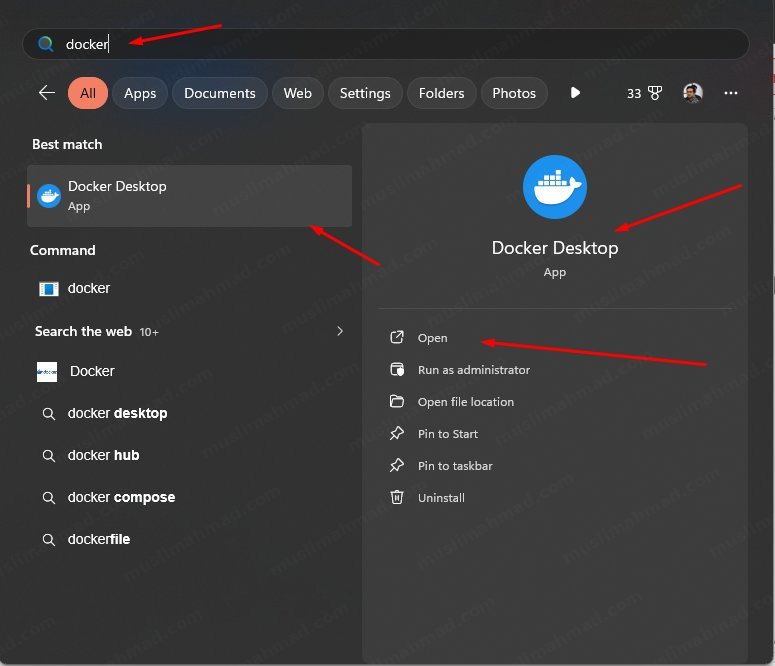
Step 2 – Create a Project Folder
Create a new folder for this project. We can do it manually or via terminal:
mkdir kafka-crud-practice
cd kafka-crud-practice
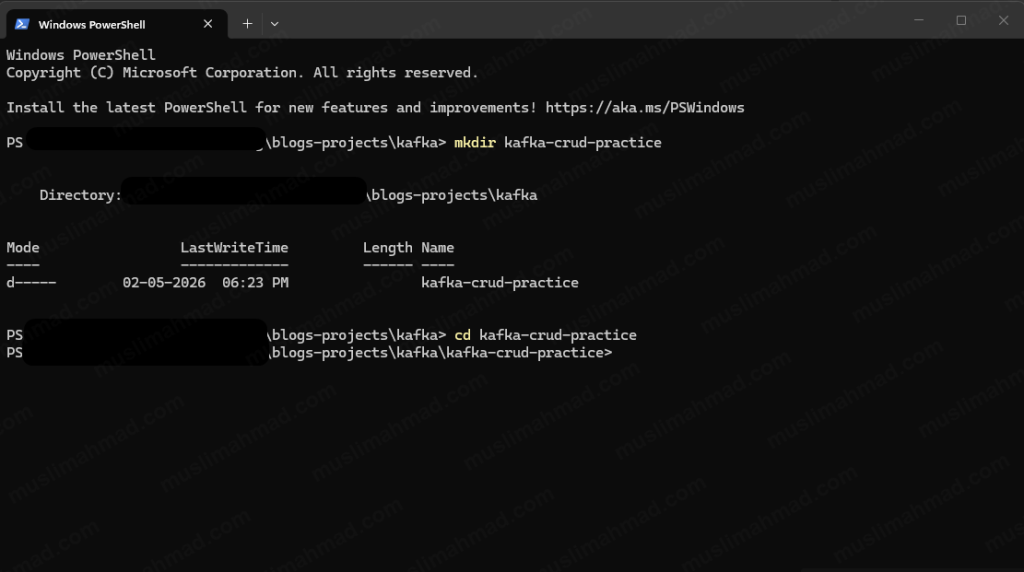
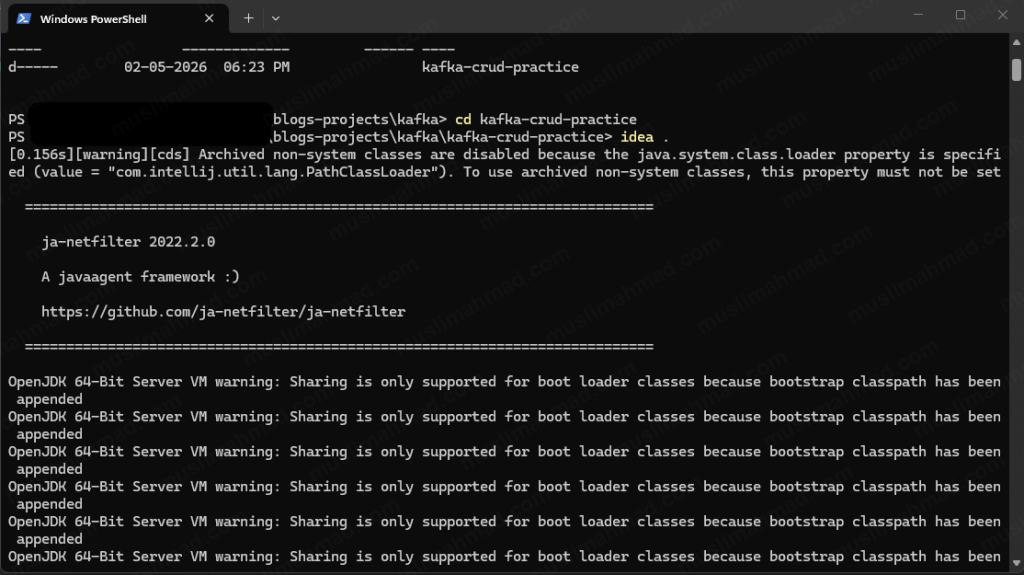
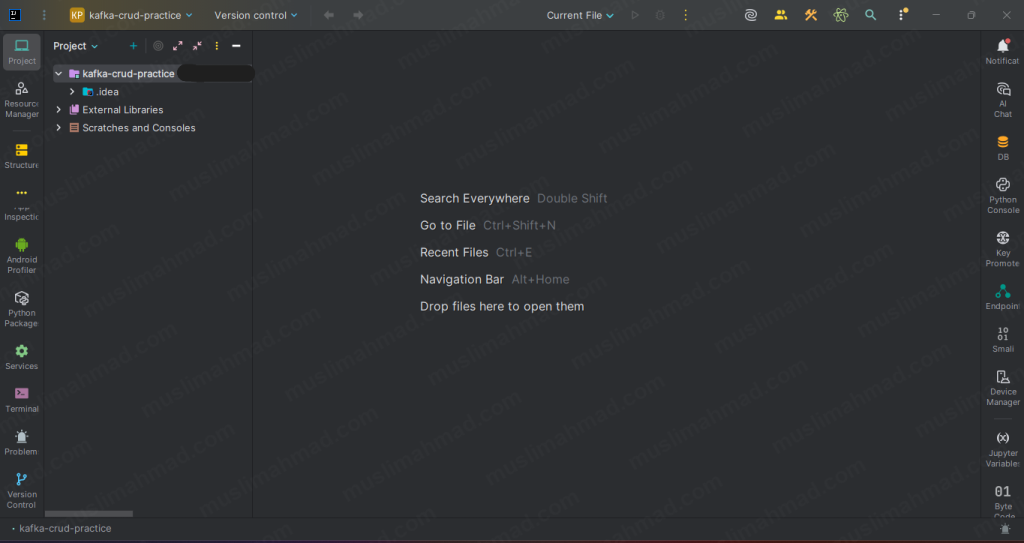
Open this folder in your code editor. I am using IntelliJ IDEA – you can use VS Code or any editor you prefer.
idea .
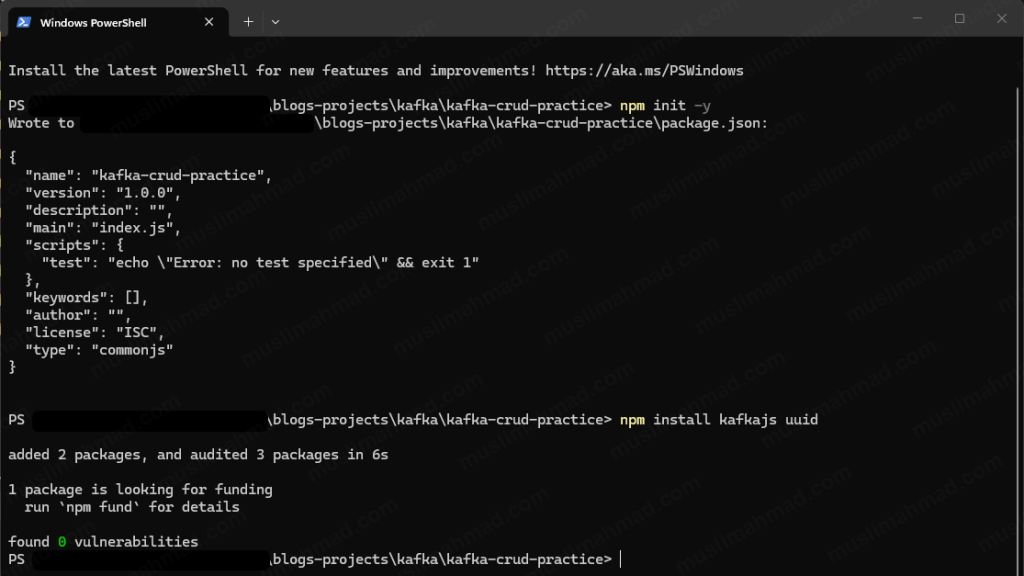
Now install the Node.js dependencies we will need later in this same project:
npm init -y
npm install kafkajs uuid
Step 3 – Create the Docker Compose File
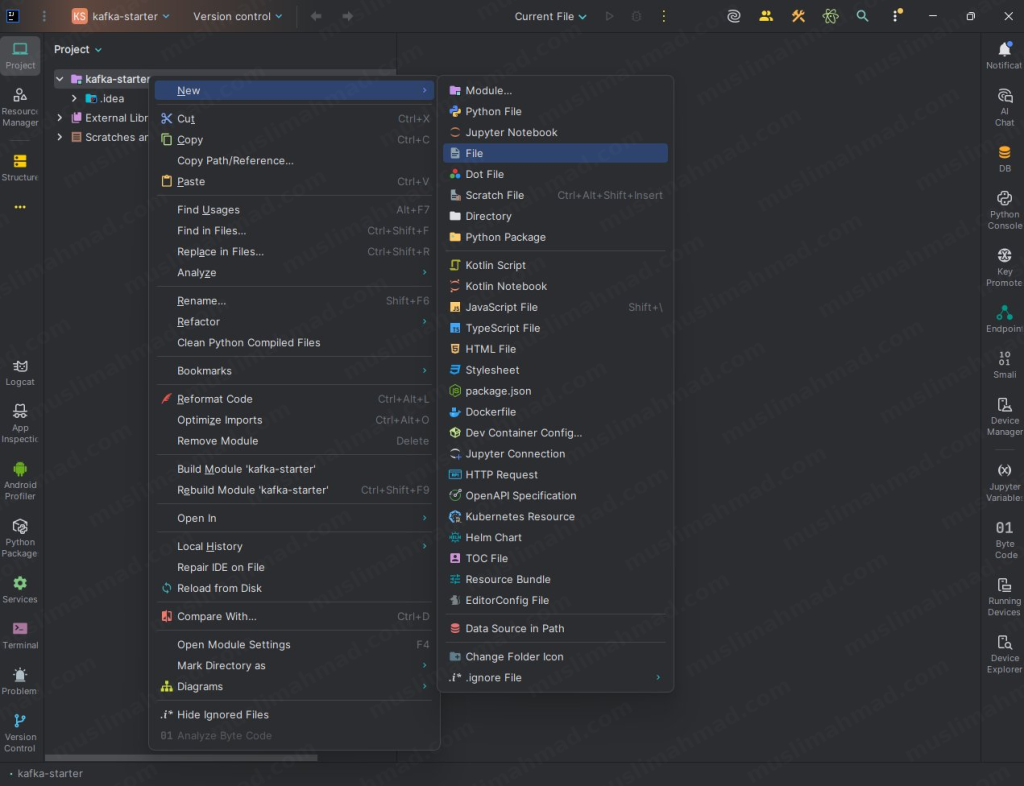
Inside your project folder, create a new file and name it exactly:
docker-compose.yml
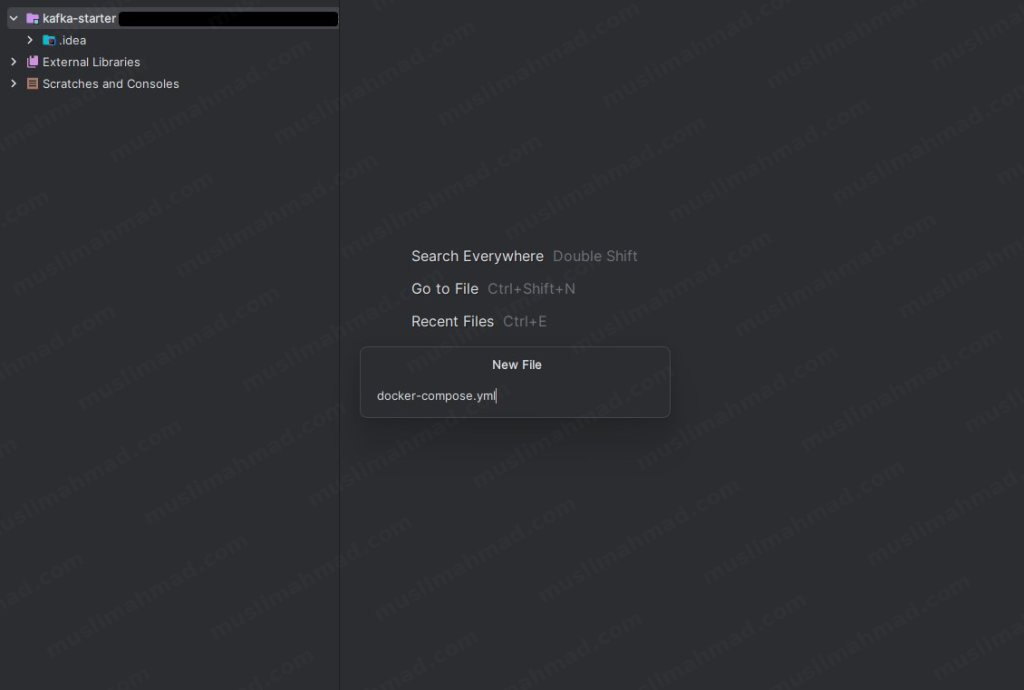
Type the filename docker-compose.yml and hit Enter:
Now paste this code into it:
version: '3'
services:
  kafka:
    image: confluentinc/cp-kafka:latest
    ports:
      - "9092:9092"
    environment:
      KAFKA_NODE_ID: 1
      KAFKA_PROCESS_ROLES: broker,controller
      KAFKA_LISTENERS: PLAINTEXT://0.0.0.0:9092,CONTROLLER://0.0.0.0:9093
      KAFKA_ADVERTISED_LISTENERS: PLAINTEXT://localhost:9092
      KAFKA_CONTROLLER_QUORUM_VOTERS: 1@kafka:9093
      KAFKA_LISTENER_SECURITY_PROTOCOL_MAP: PLAINTEXT:PLAINTEXT,CONTROLLER:PLAINTEXT
      KAFKA_CONTROLLER_LISTENER_NAMES: CONTROLLER
      KAFKA_OFFSETS_TOPIC_REPLICATION_FACTOR: 1
      CLUSTER_ID: "MkU3OEVBNTcwNTJENDM2Qk"
Save the file.
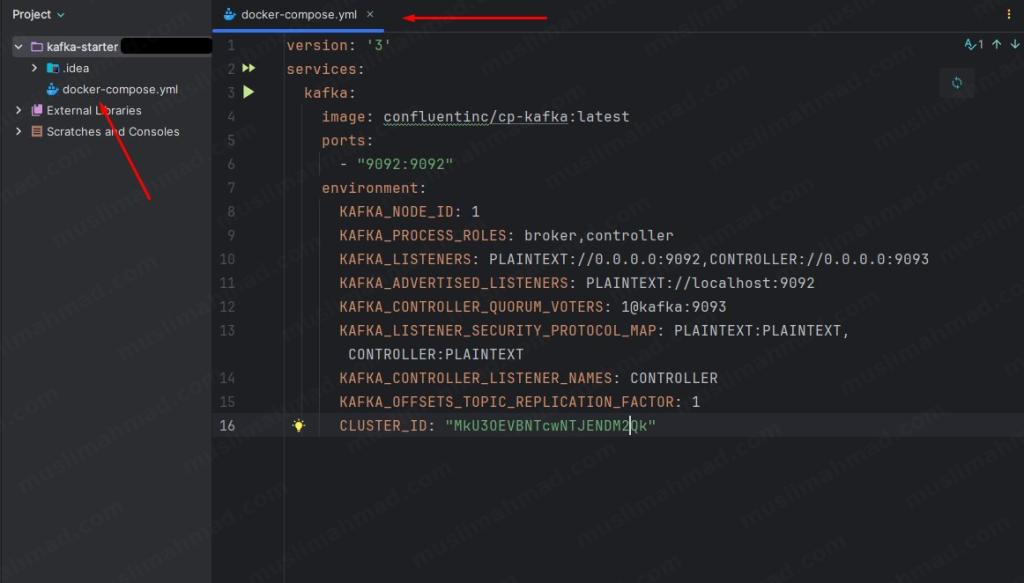
Step 4 – Start Kafka with Docker
Open your terminal inside the project folder:
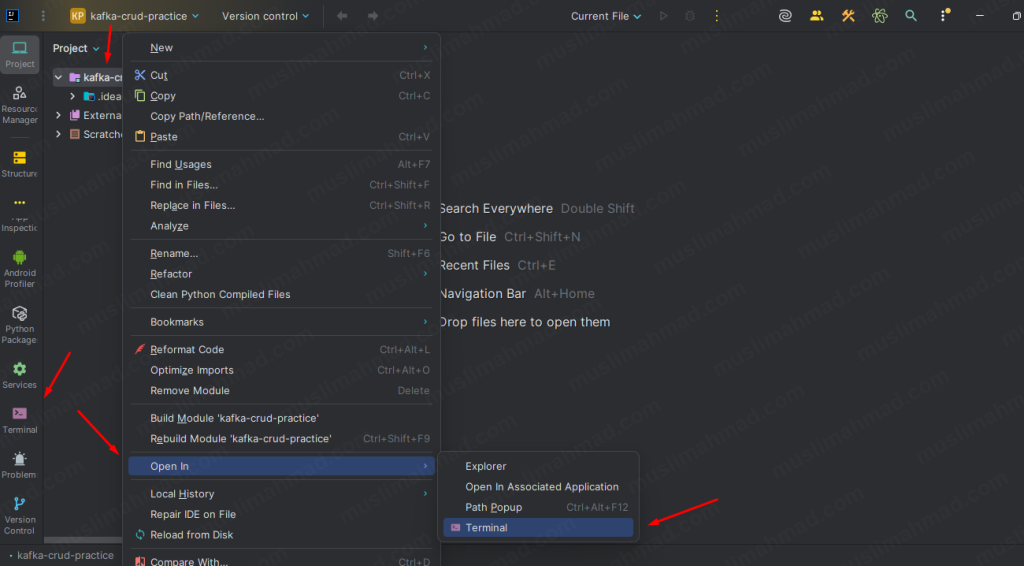
and run:
docker-compose up -d
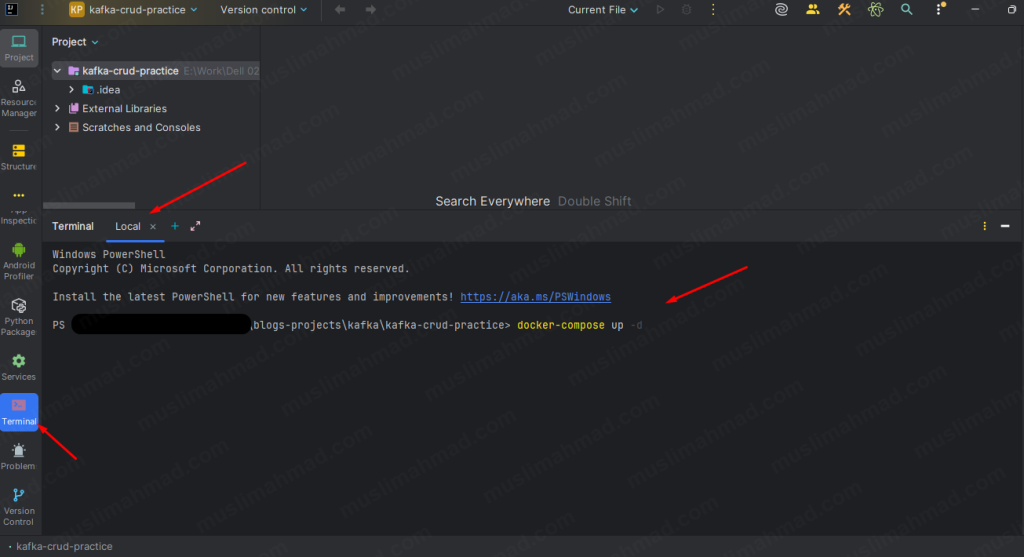
The first time we run this, Docker will download the Kafka image – this takes a couple of minutes depending on your internet speed. After that it starts instantly every time.
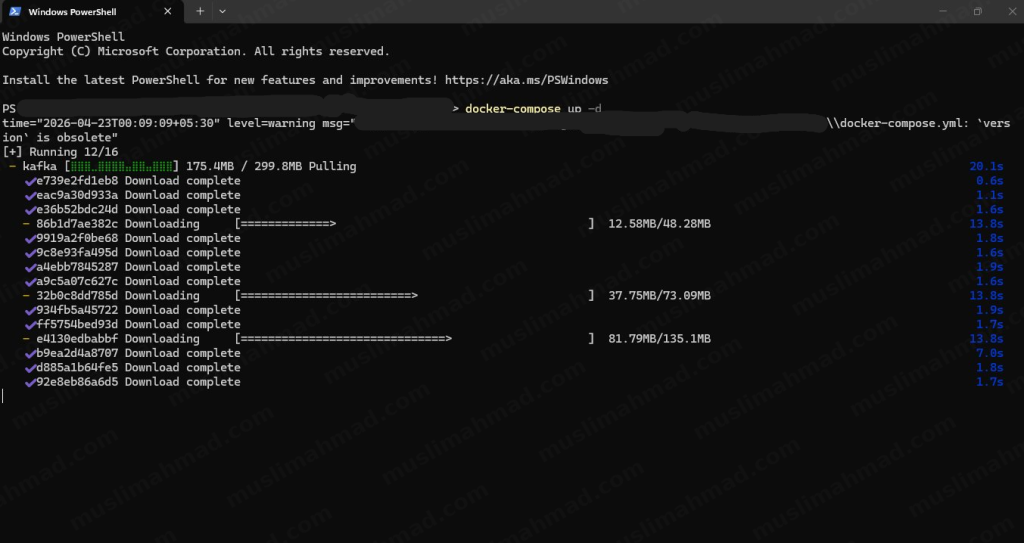
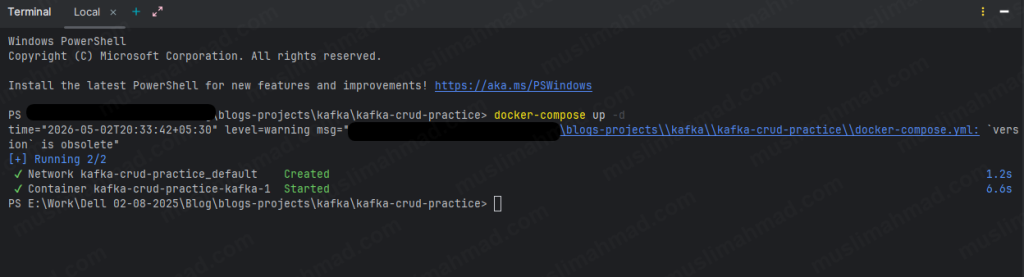
When it is done, you will see something like this:
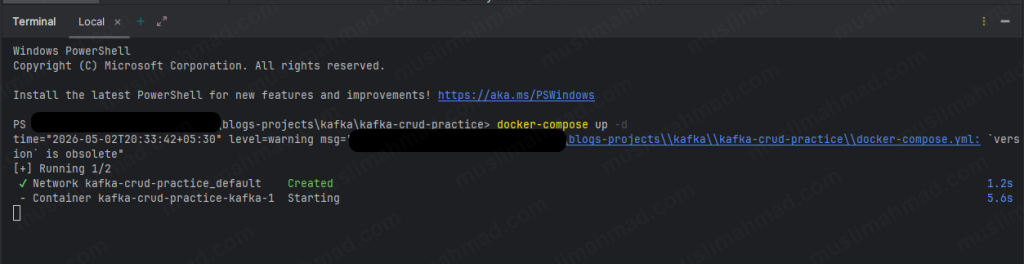
✔ Network kafka-crud-practice_default   Created
✔ Container kafka-crud-practice-kafka-1 Started
To confirm Kafka is running, run:
docker ps
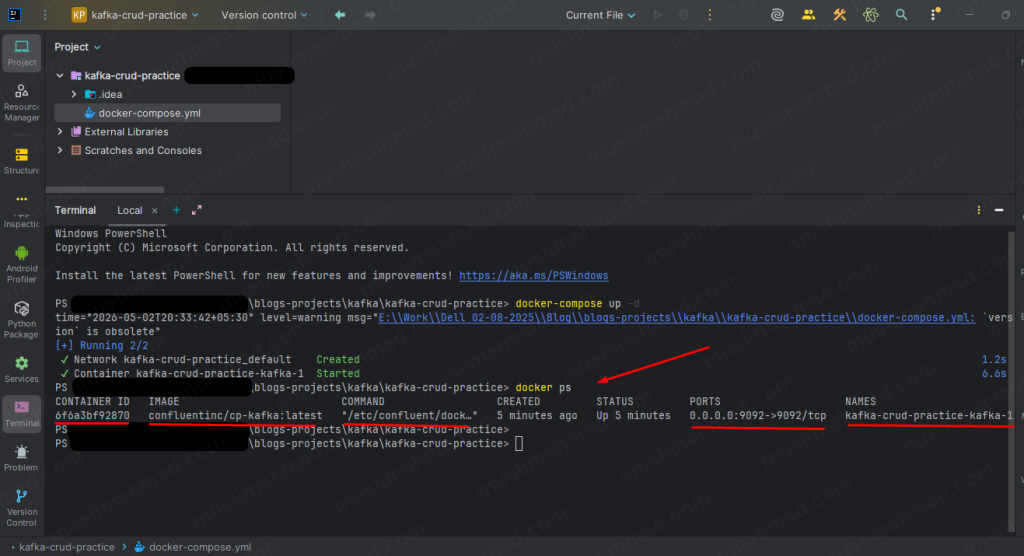
You will see output like this:
CONTAINER ID    IMAGE                          COMMAND
6f6a3bf92870    confluentinc/cp-kafka:latest   "/etc/confluent/dock…"

CREATED         STATUS         PORTS
5 minutes ago   Up 5 minutes   0.0.0.0:9092->9092/tcp

NAMES
kafka-crud-practice-kafka-1
or we can also open Docker Desktop App to check how container is running and what is the Container ID:
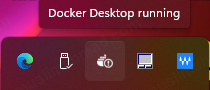
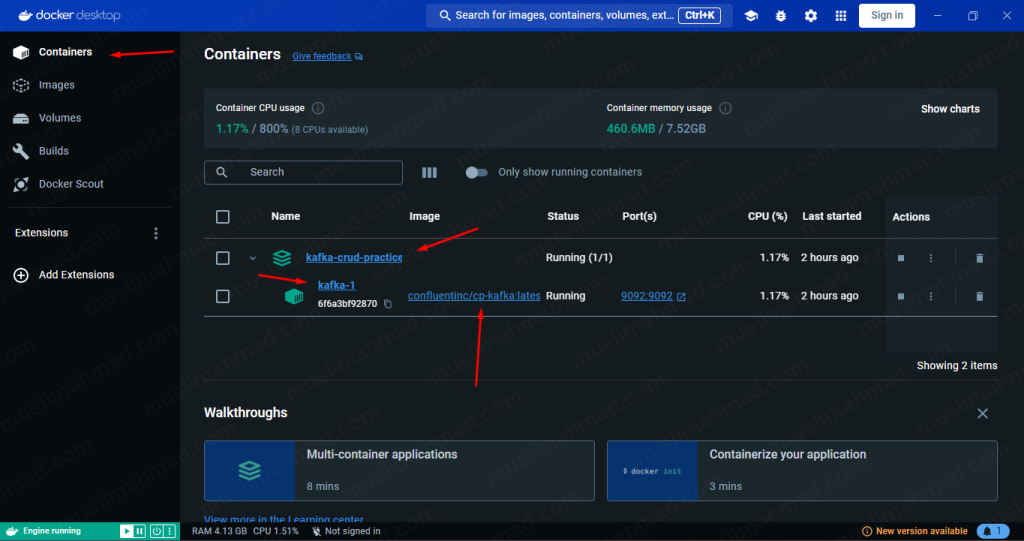
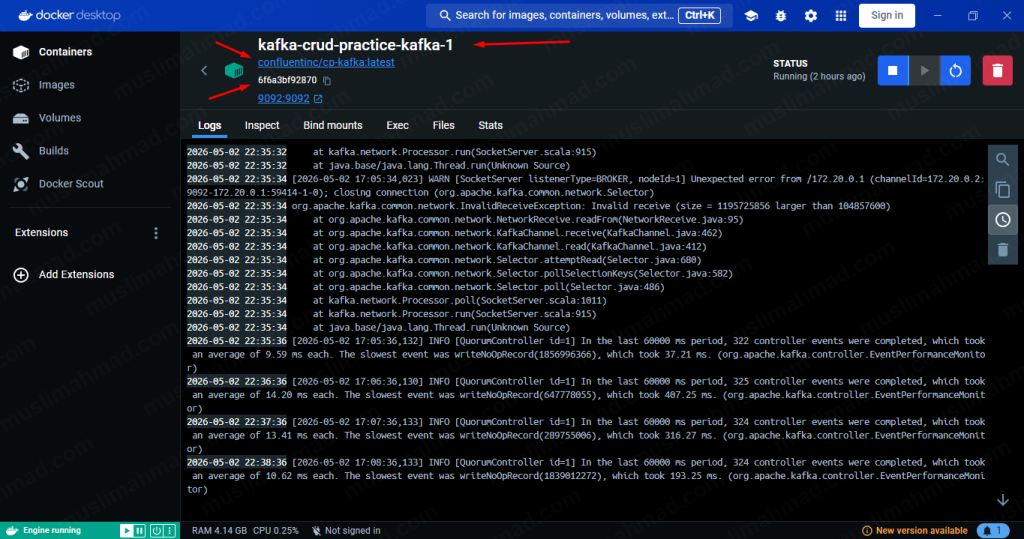
Copy that Container ID – we will need it in every command below. In my case it is 6f6a3bf92870 – yours will be different.
Step 5 – Create the users Topic
Before we can produce or consume any messages, the topic must exist. Run this command – replace <container_id> with your actual container ID:
docker exec -it <container_id> kafka-topics \
--create \
--topic users \
--bootstrap-server localhost:9092 \
--partitions 3 \
--replication-factor 1
You should see:
Created topic users.
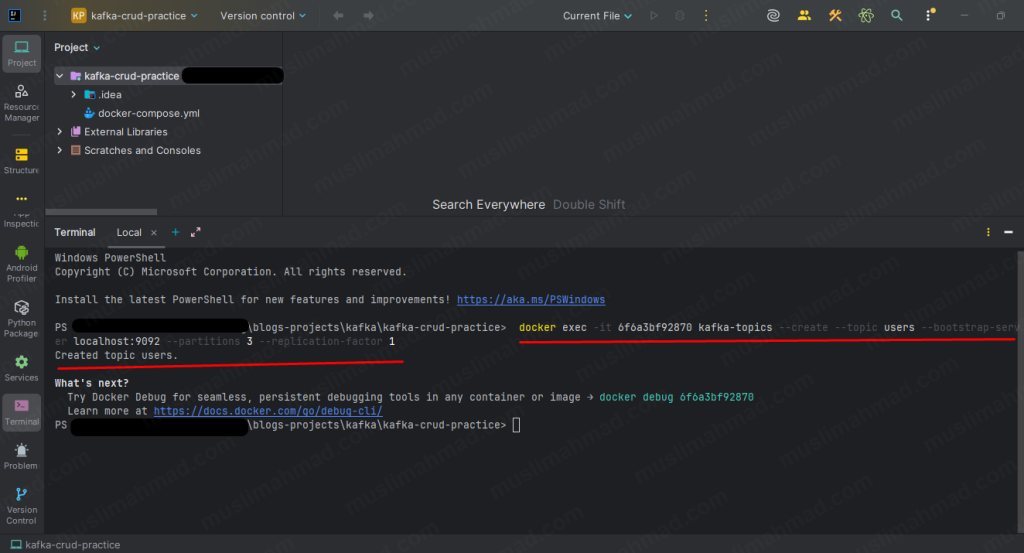
Now we are fully set up. Let’s run the CRUD operations.
1. CRUD in Terminal
CREATE – Write New Messages
Open the new terminal and run kafka console producer below command:
docker exec -it <container_id> kafka-console-producer \
  --bootstrap-server localhost:9092 \
  --topic users
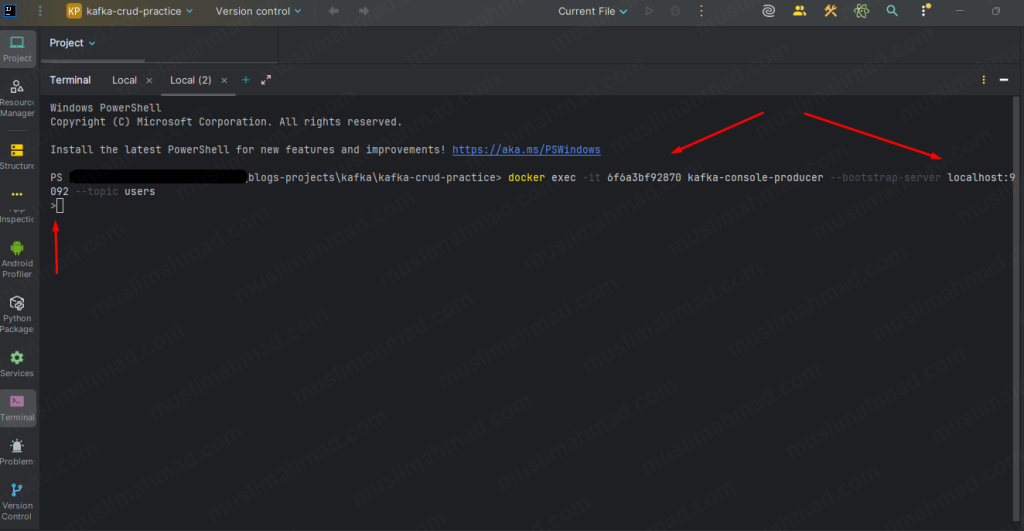
Once the > prompt appears, type each message below and hit Enter after each one:
{"id": "1", "name": "Ali Ahmad", "email": "ali@gmail.com", "action": "created"}
{"id": "2", "name": "Ramesh Kumawat", "email": "ramesh@gmail.com", "action": "created"}
{"id": "3", "name": "Morghan Boston", "email": "morghan@gmail.com", "action": "created"}
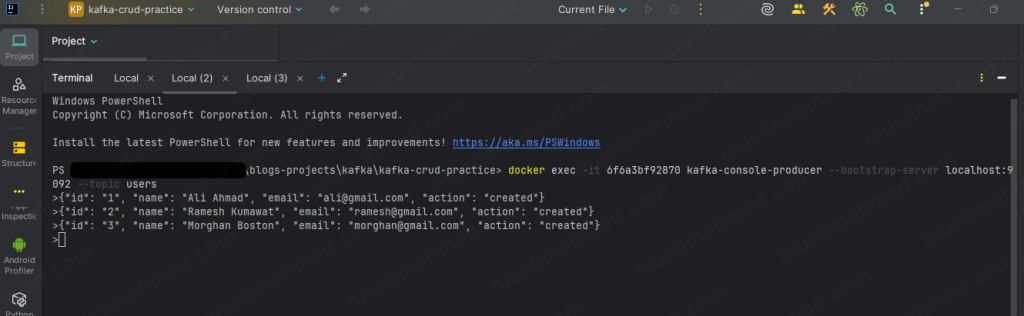
Hit Ctrl + C to exit the producer when done.
READ – See All Messages
Open a new terminal tab (keep the same folder) and run:
docker exec -it <container_id> kafka-console-consumer \
  --bootstrap-server localhost:9092 \
  --topic users \
  --from-beginning
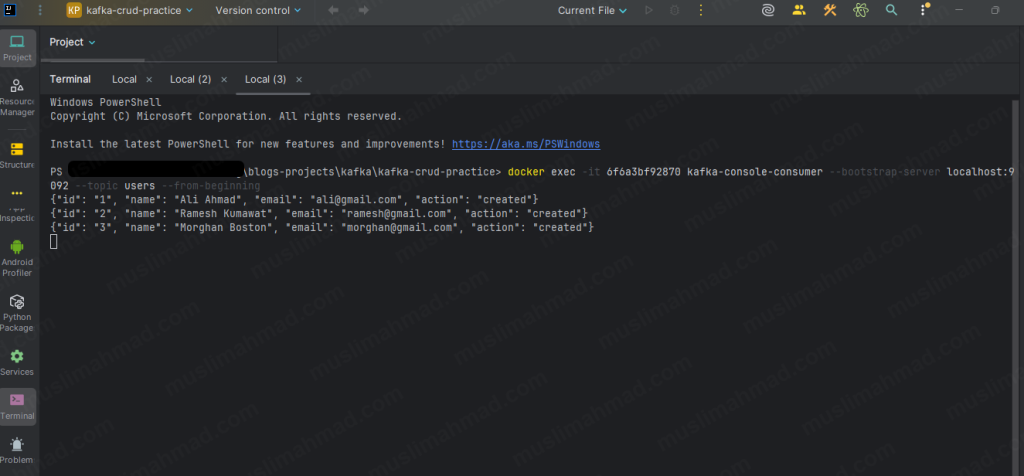
You will see all three messages printed in your terminal. Leave this consumer terminal open – it will keep listening and print any new messages as they arrive in real time.
UPDATE – Send a New Event with the Same Key
Kafka does not let you edit a message that has already been written. Instead, we send a new message with the same key – and the latest one always wins when consumers build a snapshot.
Run this command:
docker exec -it <container_id> kafka-console-producer \
  --bootstrap-server localhost:9092 \
  --topic users \
  --reader-property "parse.key=true" \
  --reader-property "key.separator=:"
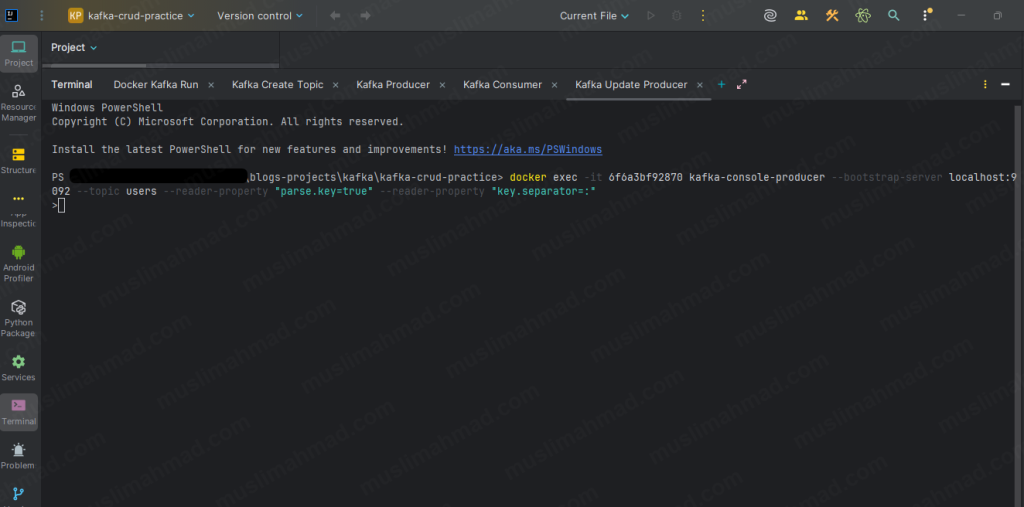
Type this – the format is key:value, separated by a colon:
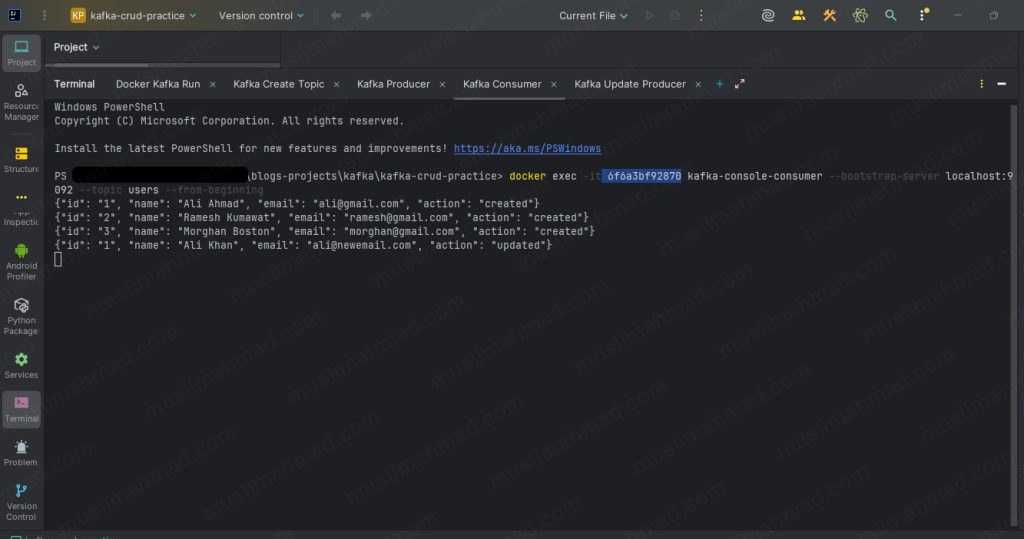
1:{"id": "1", "name": "Ali Khan", "email": "ali@newemail.com", "action": "updated"}
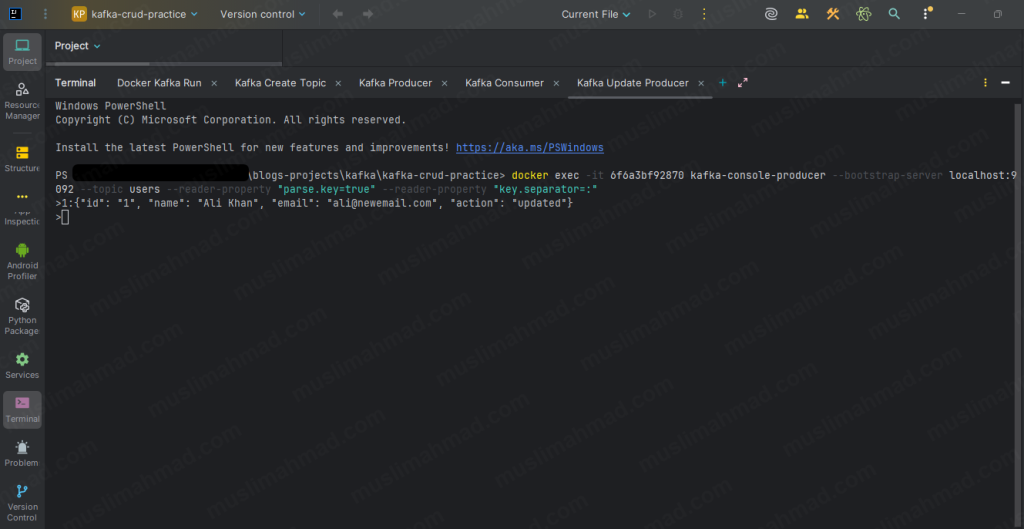
Hit Ctrl + C to exit. Now switch to your consumer terminal – you will see the updated event appear immediately as a new line.
DELETE – Send a Tombstone Message
A tombstone is a message with the same key but a null value. It tells Kafka and all consumers that this record has been logically deleted.
docker exec -it <container_id> kafka-console-producer \
  --bootstrap-server localhost:9092 \
  --topic users \
  --reader-property "parse.key=true" \
  --reader-property "key.separator=:" \
  --reader-property "null.marker=NULL"
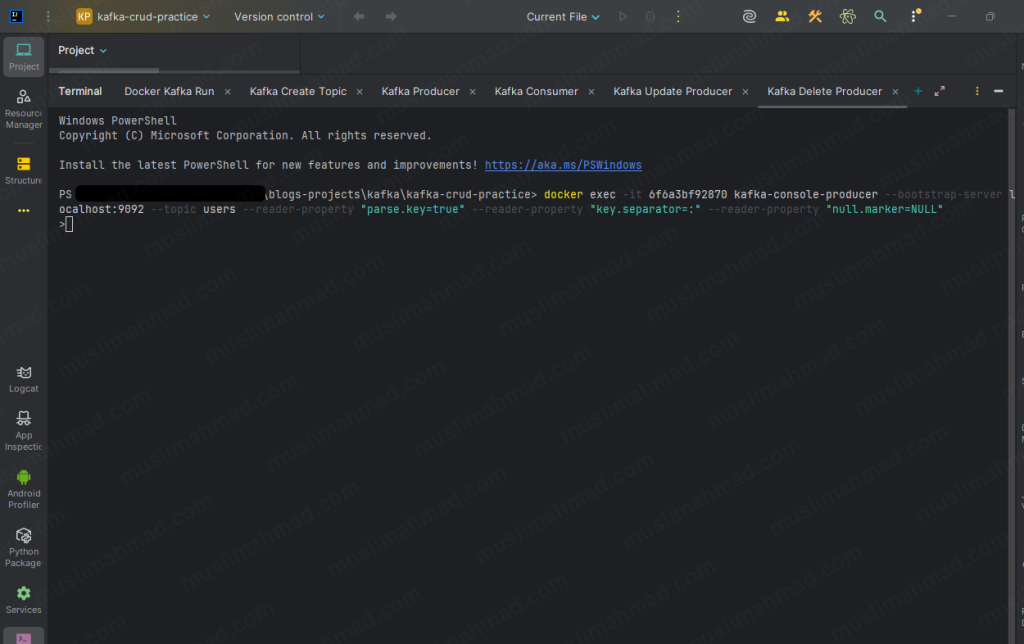
Type this:
2:NULL
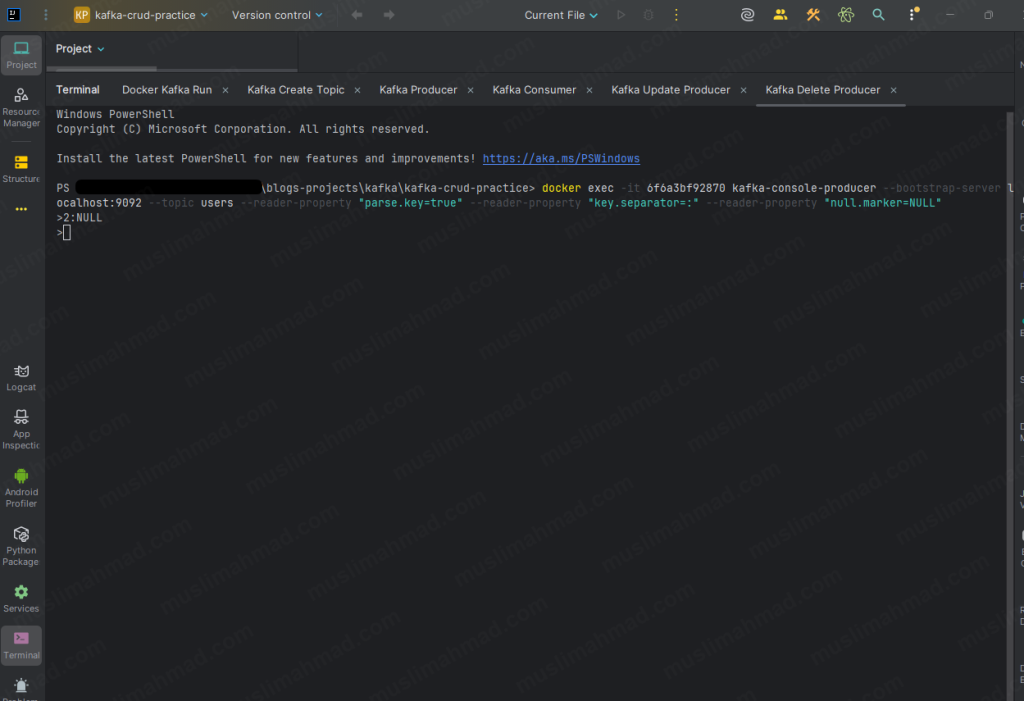
Ramesh Kumawat is now logically deleted. Switch to your consumer terminal – you will see the tombstone appear as a new line for key 2.
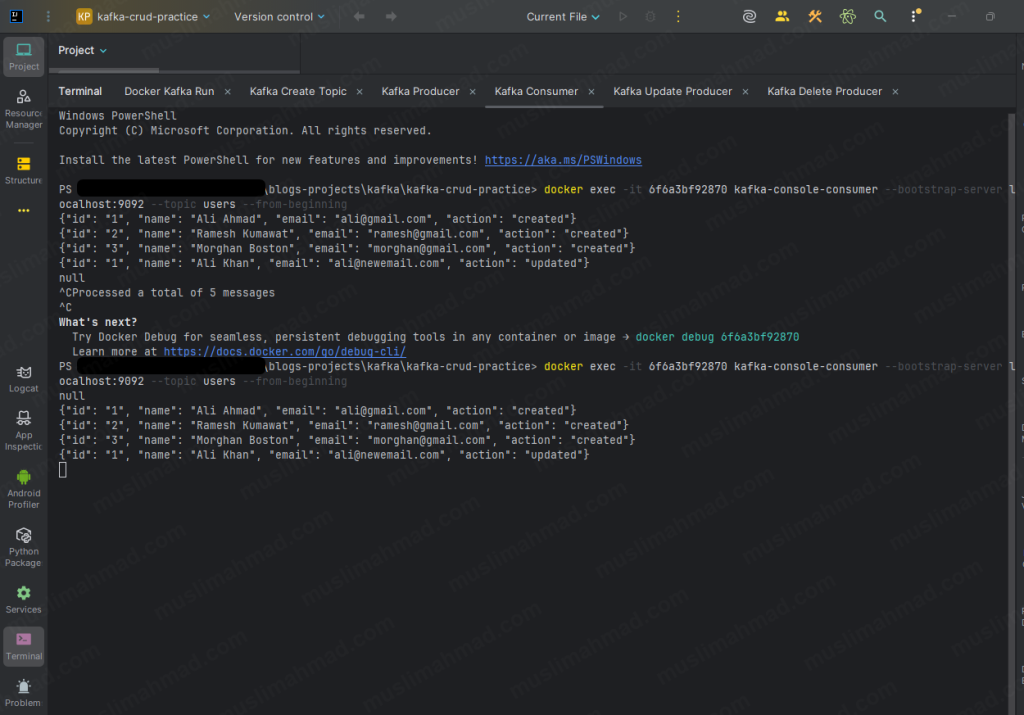
Consumer terminal after all operations:
2. Wait – Why is Old Data Still Showing? 🤔
Okay so we just ran all the CRUD commands. We updated Ali Ahmad to Ali Khan. We deleted Ramesh with a tombstone. And then we ran the consumer to check the final result.
And we saw something like this:
null
{"id": "1", "name": "Ali Ahmad", "email": "ali@gmail.com", "action": "created"}
{"id": "2", "name": "Ramesh Kumawat", "email": "ramesh@gmail.com", "action": "created"}
{"id": "3", "name": "Morghan Boston", "email": "morghan@gmail.com", "action": "created"}
{"id": "1", "name": "Ali Khan", "email": "ali@newemail.com", "action": "updated"}
And we first reaction was probably –
"Wait. Ramesh is still showing even after I deleted him. And Ali Ahmad is still there even after I updated him to Ali Khan. What is going on? Did my commands not work?"
I had the exact same confusion when I first ran this. And honestly it makes complete sense to be confused here – because this is the part where Kafka behaves very differently from a database.
Let me explain what is actually happening.
Kafka is Not a Database – This is the Proof
When we run kafka-console-consumer –from-beginning, it shows us the raw event log – every single message ever written to that topic, in the exact order they were written. No filtering. No latest-value logic. Just the full history from start to finish.
Think of it like a notebook written in pen. Every event is a line. We cannot erase old lines. We can only add new lines after them. The console consumer reads every line from top to bottom – old events and new events both.
So what we actually saw in your terminal was correct:
null               ← tombstone for Ramesh (key 2) - written last, shown first
Ali Ahmad created  ← event 1 - raw history
Ramesh created     ← event 2 - raw history
Morghan created    ← event 3 - raw history
Ali Khan updated   ← event 4 - raw history
All 5 events are there. Nothing is wrong. This is Kafka doing exactly what it is supposed to do – store every event faithfully and completely.
So Who Applies the “Latest Value Wins” Logic?
This is the key thing to understand.
Kafka does not apply it. Our application code does.
The console consumer is a raw debugging tool – it just shows everything. But in a real application, Our code reads all the events and builds a final snapshot where only the latest value for each key survives.
Here is the exact mapping of what happened with our data:
Key "1" - Ali Ahmad
  ├── Offset 1 → Ali Ahmad created   (old event)
  └── Offset 4 → Ali Khan  updated   (latest) ← this one wins

Key "2" - Ramesh
  ├── Offset 2 → Ramesh created      (old event)
  └── Offset 0 → NULL tombstone      (latest) ← deleted

Key "3" - Morghan
  └── Offset 3 → Morghan created     (only event) ← unchanged
So our actual final state after all operations is:
id "1" → Ali Khan    | ali@newemail.com  | updated    ✅
id "2" → DELETED     | tombstone         |            ✅
id "3" → Morghan     | morghan@gmail.com | created    ✅
Our commands worked perfectly. The console consumer just does not show it that way – it shows the full raw history instead.
The Simple Difference
A database shows you the current state by default. Kafka shows you the full history by default. That difference is intentional – and it is actually what makes Kafka powerful.
| Tool | What It Shows |
|---|---|
| kafka-console-consumer | Every raw event ever written – full history log |
| Your application code | Final snapshot – latest state per key only |
Why did null show first?
You might have noticed the null tombstone appeared at the top of the consumer output, not at the bottom where we sent it.
This happens because Kafka uses keys to decide which partition a message goes to. The tombstone for key 2 landed in a different partition than some of the other messages. When you read –from-beginning, Kafka reads across all partitions and the order can look slightly different from the order we sent them in.
This is completely normal. Within a single partition, order is always guaranteed. Across multiple partitions, the order depends on how Kafka distributes the messages.
Nothing is broken. Everything is working exactly as designed.
3. CRUD With Node.js – Verify the Final Result
Now let’s prove it with code. We are going to use the same project folder and the same users topic from the terminal section above. No new folder needed.
The Node.js code will read all the events from the users topic and apply the “latest key wins” logic – and show you the correct final snapshot.
Create kafka-crud.js
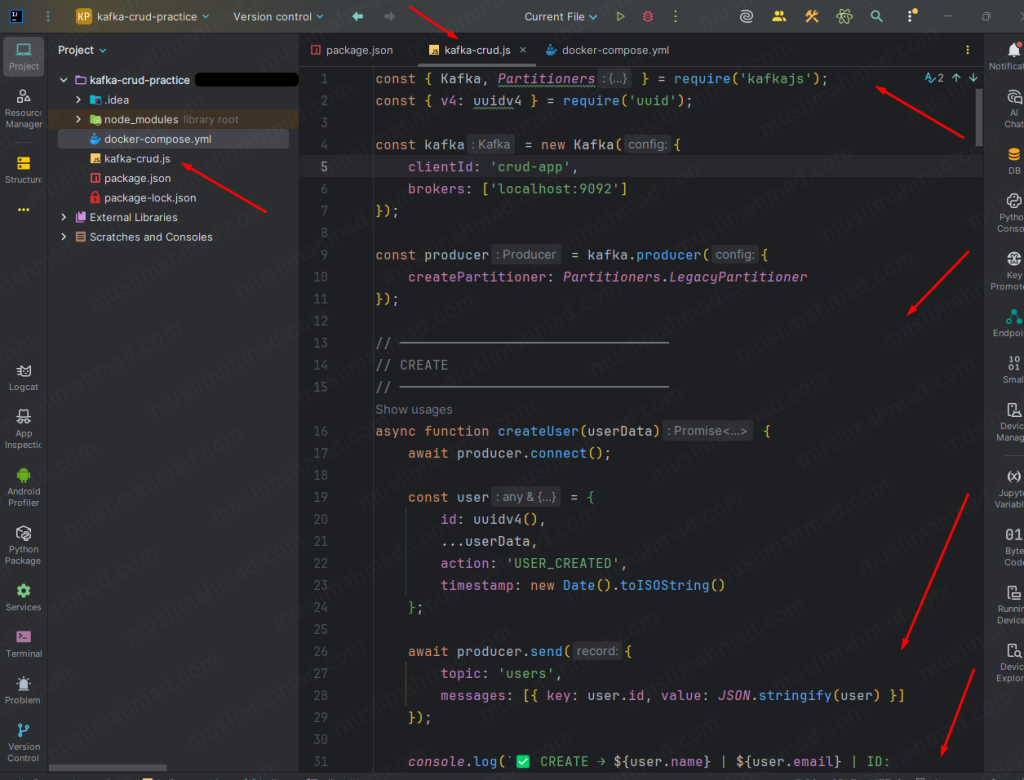
Inside your kafka-crud-practice folder, create a new file called kafka-crud.js and paste this code:
const { Kafka, Partitioners } = require('kafkajs');
const { v4: uuidv4 } = require('uuid');

const kafka = new Kafka({
    clientId: 'crud-app',
    brokers: ['localhost:9092'],
    retry: {
        initialRetryTime: 300,
        retries: 5
    }
});

// ── Single producer instance — connect once, use everywhere ──
const producer = kafka.producer({
    createPartitioner: Partitioners.LegacyPartitioner
});

async function createUser(userData) {
    const user = {
        id: uuidv4(),
        ...userData,
        action: 'USER_CREATED',
        timestamp: new Date().toISOString()
    };
    await producer.send({
        topic: 'users',
        messages: [{ key: user.id, value: JSON.stringify(user) }]
    });
    console.log(`✅ CREATE → ${user.name} | ${user.email} | ID: ${user.id.slice(0, 8)}...`);
    return user;
}

async function updateUser(userId, updatedData) {
    const update = { id: userId, ...updatedData, action: 'USER_UPDATED', timestamp: new Date().toISOString() };
    await producer.send({
        topic: 'users',
        messages: [{ key: userId, value: JSON.stringify(update) }]
    });
    console.log(`✏️  UPDATE → ID: ${userId.slice(0, 8)}... | New Email: ${updatedData.email}`);
}

async function deleteUser(userId) {
    await producer.send({
        topic: 'users',
        messages: [{ key: userId, value: null }]
    });
    console.log(`🗑️  DELETE → ID: ${userId.slice(0, 8)}... tombstone sent`);
}

async function readAllUsers() {
    const consumer = kafka.consumer({
        groupId: `read-group-${Date.now()}`,
        sessionTimeout: 30000,
        heartbeatInterval: 3000,
        maxWaitTimeInMs: 500,
    });

    await consumer.connect();
    await consumer.subscribe({ topic: 'users', fromBeginning: true });

    const users = {};
    let hasJoined = false;
    let lastMsgTime = null;
    let resolved = false;

    consumer.on(consumer.events.GROUP_JOIN, () => {
        hasJoined = true;
        lastMsgTime = Date.now();
    });

    await new Promise((resolve, reject) => {
        consumer.run({
            eachMessage: async ({ message }) => {
                const key = message.key?.toString();
                const value = message.value?.toString();
                if (!value || value === 'null') {
                    delete users[key];
                } else {
                    users[key] = JSON.parse(value);
                }
                lastMsgTime = Date.now();
            }
        }).catch(reject);

        const interval = setInterval(() => {
            if (resolved) return;
            if (!hasJoined) return;
            if (Date.now() - lastMsgTime > 2000) {
                resolved = true;
                clearInterval(interval);
                resolve();
            }
        }, 300);

        setTimeout(() => {
            if (!resolved) {
                resolved = true;
                clearInterval(interval);
                resolve();
            }
        }, 30000);
    });

    await consumer.disconnect();

    const allUsers = Object.values(users);
    console.log(`\n📋 READ — Final Snapshot (${allUsers.length} user${allUsers.length !== 1 ? 's' : ''}):`);
    console.log('─'.repeat(55));
    if (allUsers.length === 0) {
        console.log('   No users found.');
    } else {
        allUsers.forEach((u, i) => {
            console.log(`   ${i + 1}. Name:   ${u.name}`);
            console.log(`      Email:  ${u.email}`);
            console.log(`      Action: ${u.action}`);
            if (i < allUsers.length - 1) console.log('');
        });
    }
    console.log('─'.repeat(55));
    return allUsers;
}

async function main() {
    console.log('\n=== Kafka CRUD — Node.js ===\n');

    await producer.connect();

    console.log('--- CREATE ---');
    const user1 = await createUser({ name: 'Ali Ahmad',  email: 'ali@gmail.com'  });
    const user2 = await createUser({ name: 'Sara Khan',  email: 'sara@gmail.com' });
    await createUser({ name: 'Ahmed Raza', email: 'ahmed@gmail.com' });

    await new Promise(r => setTimeout(r, 1000));

    console.log('\n--- UPDATE ---');
    await updateUser(user1.id, { name: 'Ali Khan', email: 'ali@newemail.com' });

    console.log('\n--- DELETE ---');
    await deleteUser(user2.id);

    await producer.disconnect();

    console.log('\n⏳ Waiting for Kafka to settle...');
    await new Promise(r => setTimeout(r, 2000));

    console.log('\n--- READ ---');
    await readAllUsers();

    console.log('\n✅ Done!\n');
}

main().catch(console.error);
Run It
Make sure Kafka is still running (docker ps to check), then:
node kafka-crud.js
What You Will See
=== Kafka CRUD — Node.js ===

--- CREATE ---
✅ CREATE → Ali Ahmad  | ali@gmail.com   | ID: abc123...
✅ CREATE → Sara Khan  | sara@gmail.com  | ID: xyz456...
✅ CREATE → Ahmed Raza | ahmed@gmail.com | ID: pqr789...

--- UPDATE ---
✏️  UPDATE → ID: abc123... | New Email: ali@newemail.com

--- DELETE ---
🗑️  DELETE → ID: xyz456... tombstone sent

⏳ Waiting for Kafka to settle...

--- READ ---
📋 READ — Final Snapshot (2 users):
───────────────────────────────────────────────────────
   1. Name:   Ali Khan
      Email:  ali@newemail.com
      Action: USER_UPDATED

   2. Name:   Ahmed Raza
      Email:  ahmed@gmail.com
      Action: USER_CREATED
───────────────────────────────────────────────────────

✅ Done!
Sara Khan is gone – tombstone worked ✅ Ali shows updated name and new email ✅ Ahmed Raza is untouched ✅
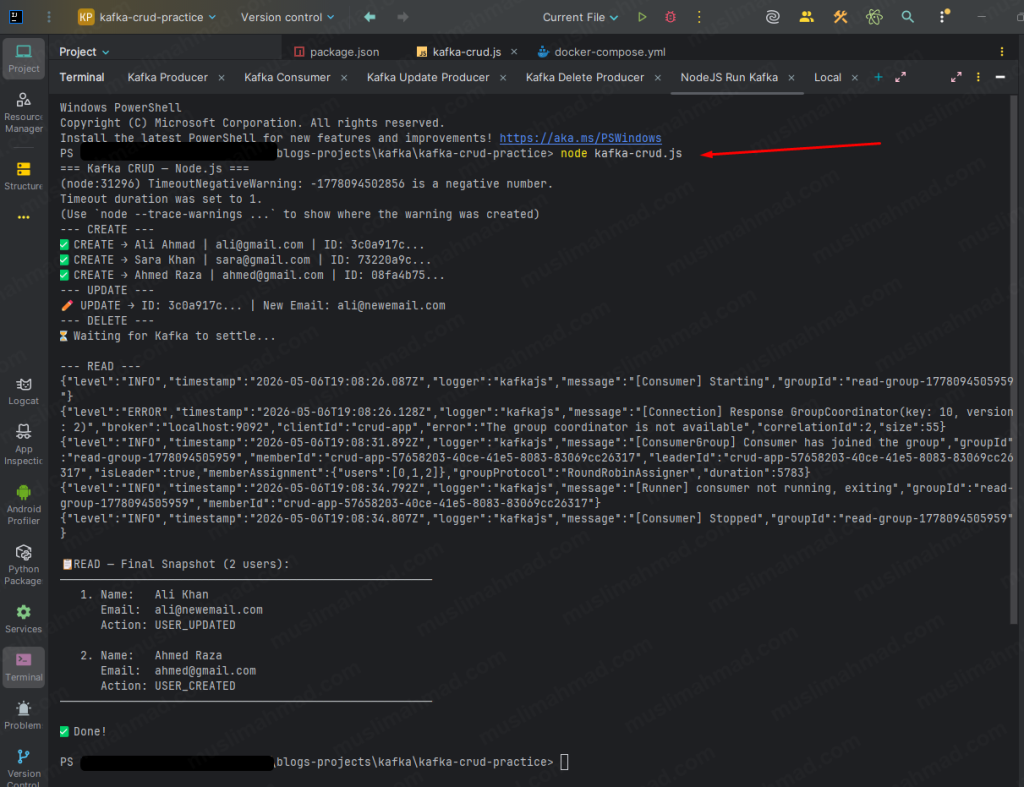
This is the correct final state. This is what your application shows to users – not the raw Kafka log from the terminal.
The difference between what the terminal consumer showed us and what this code shows is the exact difference between Kafka’s raw event log and our application’s built snapshot. You have now seen both with your own eyes in the same project. That is a big deal.
The Golden Rule of Kafka
Kafka’s job – store every event faithfully. Full history. Nothing hidden. Your application’s job – read those events and build the current state.
This pattern is called Event Sourcing – used by Netflix, LinkedIn, and Uber in their production systems every single day. We just ran through the full cycle of it in our own terminal and in Node.js code.
That is not a small thing. Most developers read about this for weeks before it actually clicks. You just made it click by doing it. 🎉
Stop Kafka When Done
Run this command:
docker-compose down
Output:
✔ Container kafka-crud-practice-kafka-1  Removed
✔ Network kafka-crud-practice_default    Removed
Your code and files stay untouched. Run docker-compose up -d anytime to start again.
When to Use What – Simple Decision Guide
I know decision tables can feel overly simplified, but this one is genuinely useful when you’re sitting in a meeting and someone asks “should we use Kafka or just hit the database?”
| Scenario | Use Database | Use Kafka |
|---|---|---|
| Store a user profile permanently | ✅ | ❌ |
| Query users by email or name | ✅ | ❌ |
| Send a welcome email when user registers | ❌ | ✅ |
| Save an order with all its details | ✅ | ❌ |
| Notify inventory service when order is placed | ❌ | ✅ |
| Show real-time updates in a dashboard | ❌ | ✅ |
| Historical reports and analytics storage | ✅ | ❌ |
| Sync data between two microservices | ❌ | ✅ |
The pattern is clear. Database = store it. Kafka = react to it.
Kafka vs SQL vs NoSQL – One More Level Deeper
Since we are on the topic, here is a quick breakdown of where SQL and NoSQL databases fit:
| SQL (PostgreSQL, MySQL) | NoSQL (MongoDB, DynamoDB) | Kafka | |
|---|---|---|---|
| Structure | Strict schema, tables | Flexible, documents | Event log |
| Relationships | Yes – joins, foreign keys | Limited | None |
| Best For | Financial data, structured records | User data, flexible schemas | Real-time events, messaging |
| Scaling | Vertical (mostly) | Horizontal | Horizontal (partitions) |
| Transactions | Full ACID support | Partial | No transactions |
Each tool has a job. When we give every tool its right job, the system becomes clean, fast, and easy to maintain.
Key Takeaways
If we take nothing else from this blog, remember these five things:
- Kafka is not a database replacement – it is a communication layer that sits between your services
- Databases store current state – Kafka stores what happened and when it happened
- CRUD in Kafka is simulated through events – create, update, and delete are all just different types of messages
- Tombstones are how Kafka handles deletion – a null value on a key marks it as removed
- The best architecture uses both – database for storage, Kafka for events
See you in Part 3. 🚀
Questions about Kafka vs your database setup? Drop a comment below – I read every one and reply to most of them.